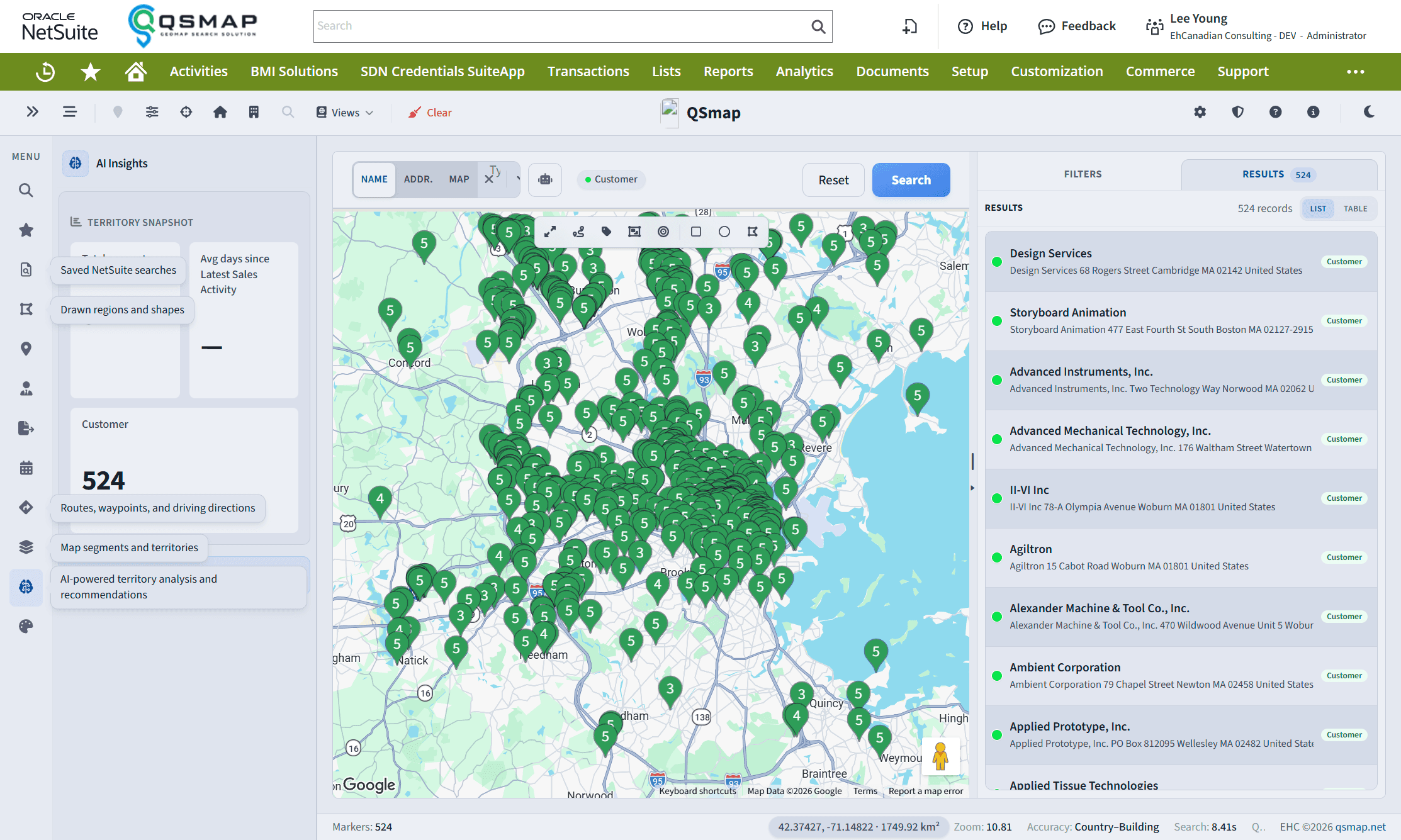
AI Insights
AI-assisted territory analysis, privacy controls, and model selection.
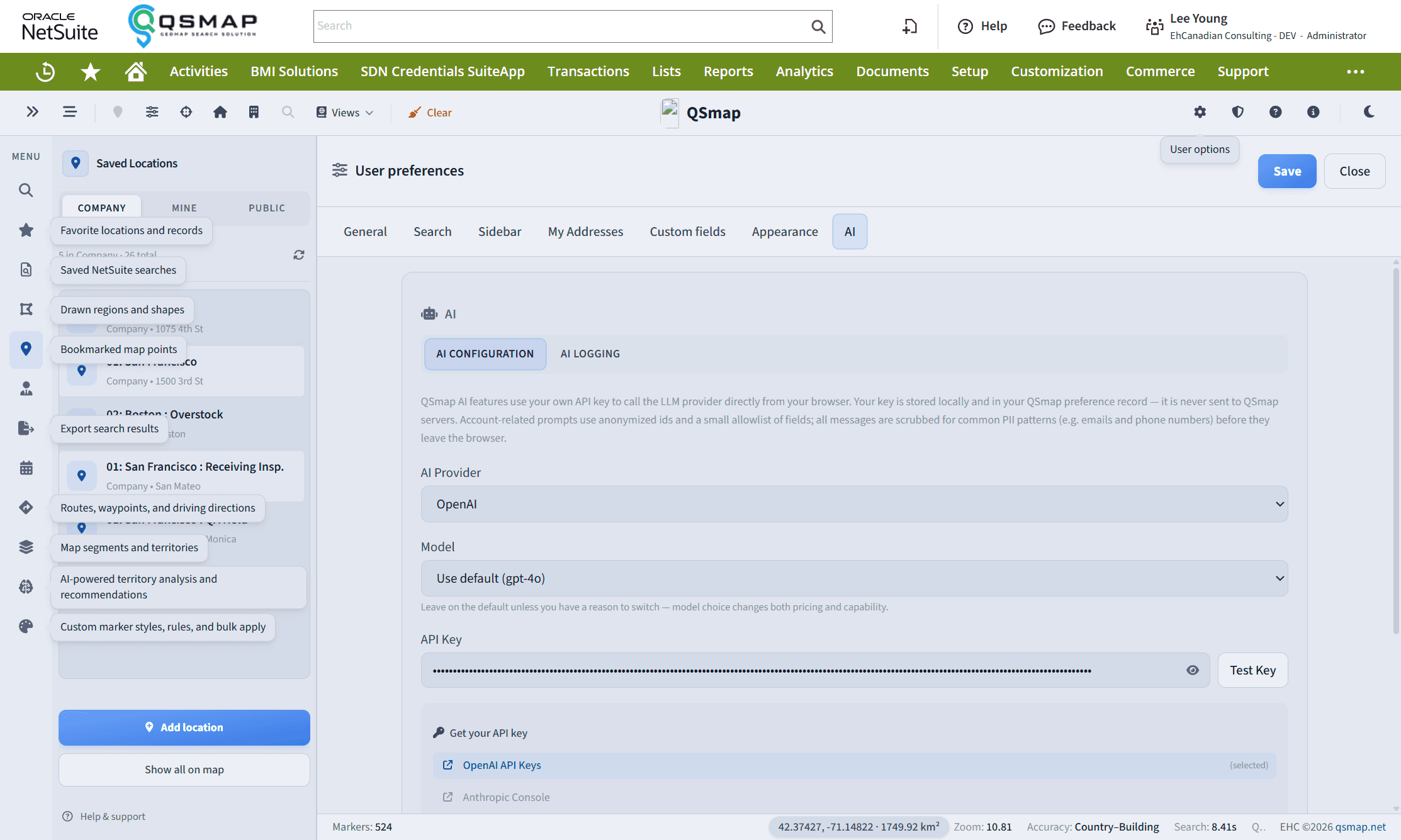
AI Insights and related AI features become available after an API key is configured (personal key in User preferences, and/or organization defaults from admin).
Configure AI
- Open User preferences (gear → Edit all preferences…) → AI.
- Choose a provider (OpenAI, Anthropic, or Google Gemini).
- Pick a model (or leave the default).
- Enter your API key, optionally Test Key, then Save.
Keys are stored in your QSmap preference record and used from the browser. QSmap does not send your key to QSmap servers. Prompts are scrubbed for common PII patterns before they leave the browser.
What AI can help with
When configured, available capabilities may include:
- AI-assisted trip planning (also from Directions)
- Natural language search
- Account visit briefing
- Territory coverage analysis
- Route scoring and recommendations
Treat output as decision support—verify against NetSuite data before acting.
Privacy and logging
Review AI Logging in preferences and presentation/privacy options under General. Organizations may also configure shared defaults from the Administration Panel.
Latest Sales Activity
If NetSuite Latest Sales Activity is installed, additional AI-oriented workflows may become available. Ask your administrator if you expected them and do not see them.
Available models depend on your provider account and org settings. If the AI panel says it is not configured, add a key under User preferences → AI.
Related