Options
Main Options
Home and work locations, theme, search behavior, clustering, privacy, and AI preferences.
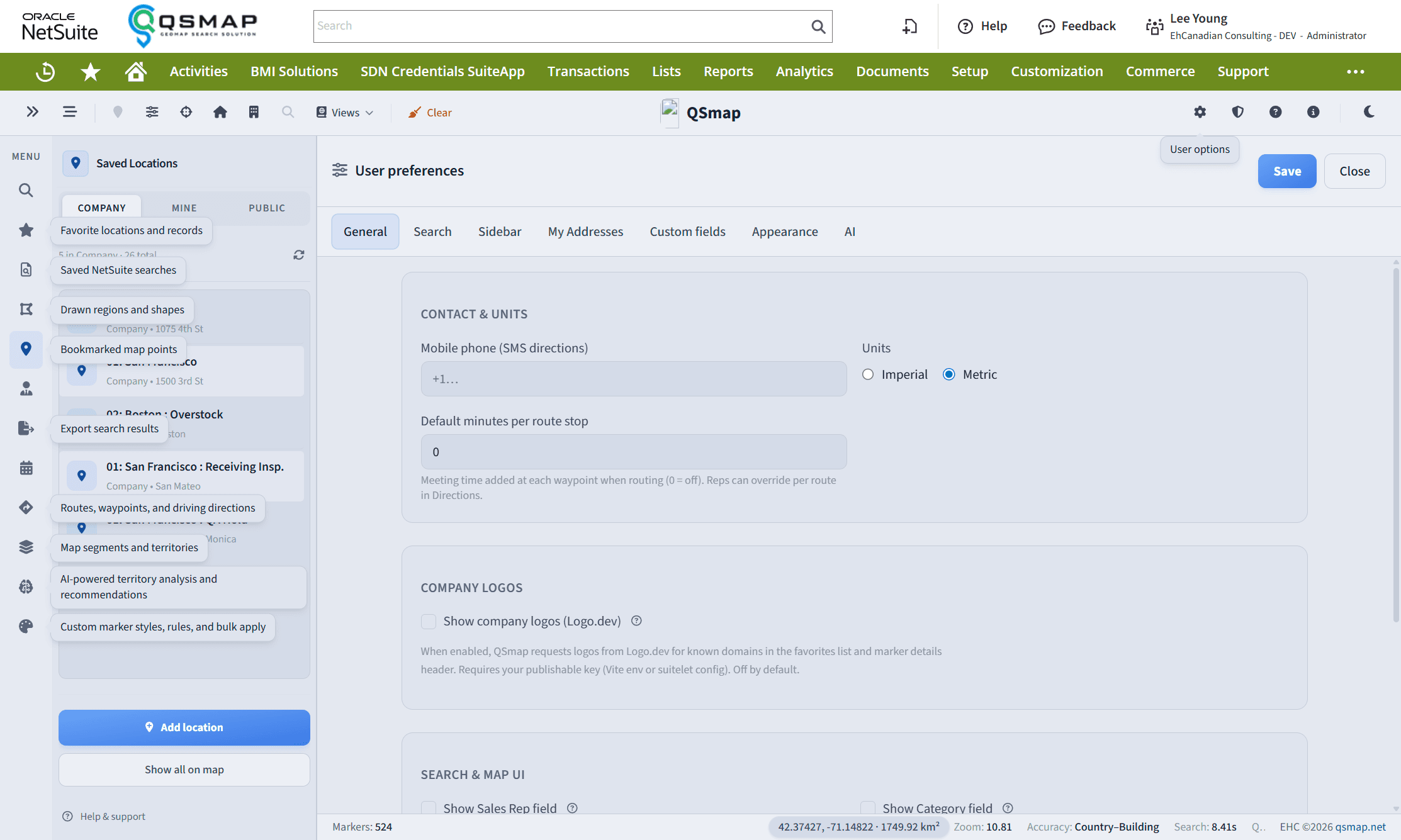
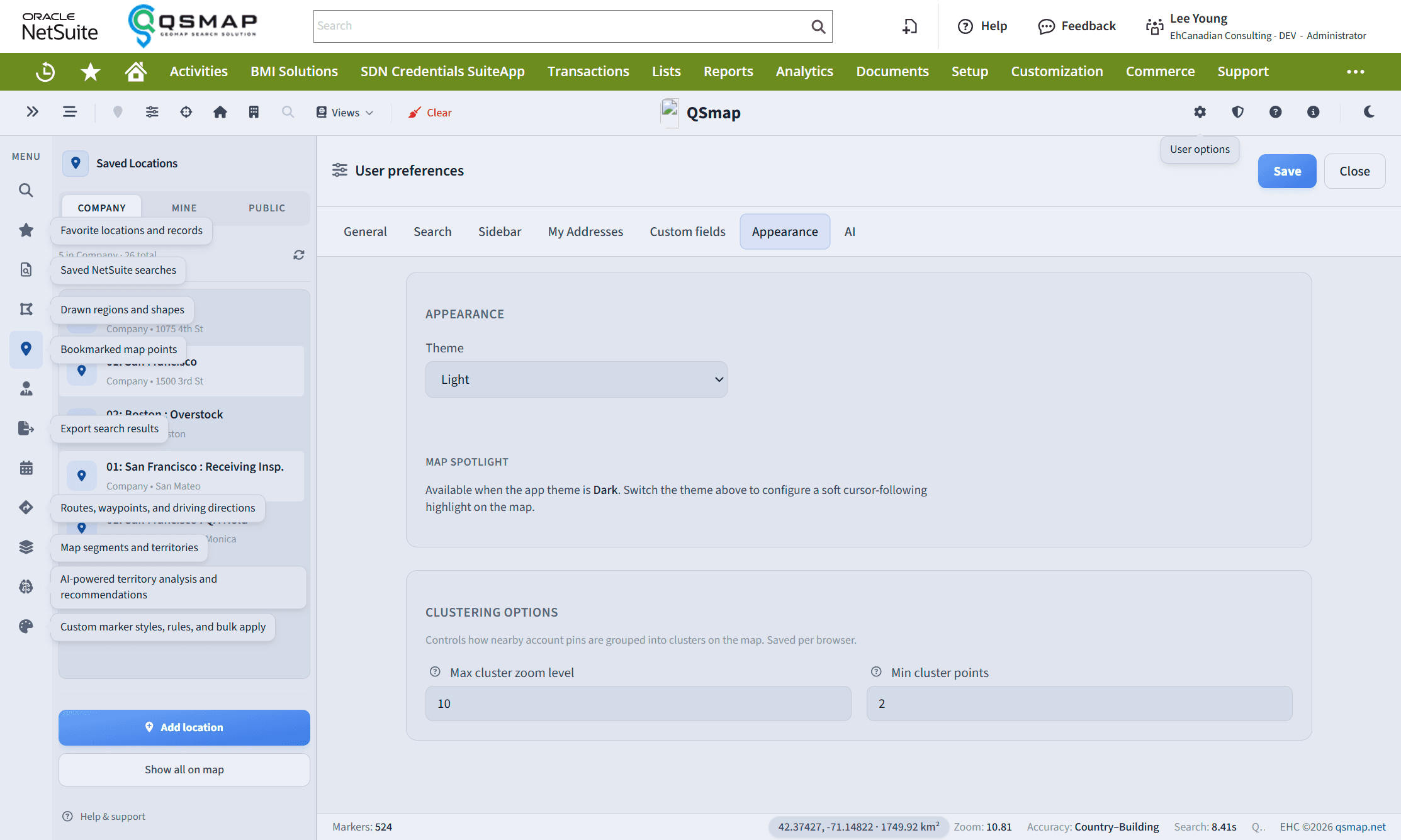
Open Options (cog / settings) from the app chrome to manage personal preferences. Exact tabs vary by license and role.
Locations
- Home location — center the map, set home, then use the home control on the map toolbar. Drag the pin to refine.
- Work location — same pattern for your work pin.
- Mobile / SMS — where SMS features are used (for example directions), keep a valid mobile number in preferences when prompted.
Appearance
- Theme — light or dark (modern QSmap no longer ships a long list of decorative themes).
- Optional presentation / privacy-oriented display settings for screen sharing—see Hide Pins and Privacy.
Search and map behavior
| Option | Effect |
|---|---|
| Search as viewport changes | Re-run search while panning/zooming. Clearing it requires an explicit search. |
| Search world map | Ignore viewport bounds. Not recommended for accounts with very large entity counts. |
| Cluster by default | Default clustering for new searches |
| Max cluster zoom / cluster size | Fine-tune when clusters expand |
| Zoom to extents after results | Fit the map to returned markers |
| Max results | Cap how many markers a search returns |
| Units | Metric or imperial |
| Heatmap | Density visualization when your license includes it |
AI preferences
When AI is enabled for your organization, you may select a preferred model (org default applies if unset). Help text in preferences explains logging and privacy-related AI options.
Preference help tooltips explain search, privacy, display, clustering, and AI logging options before you change them. Hover the ? icons in Options when available.
Related