Mapping
Saved Regions
Draw, save, rename, and edit region boundaries on the map.
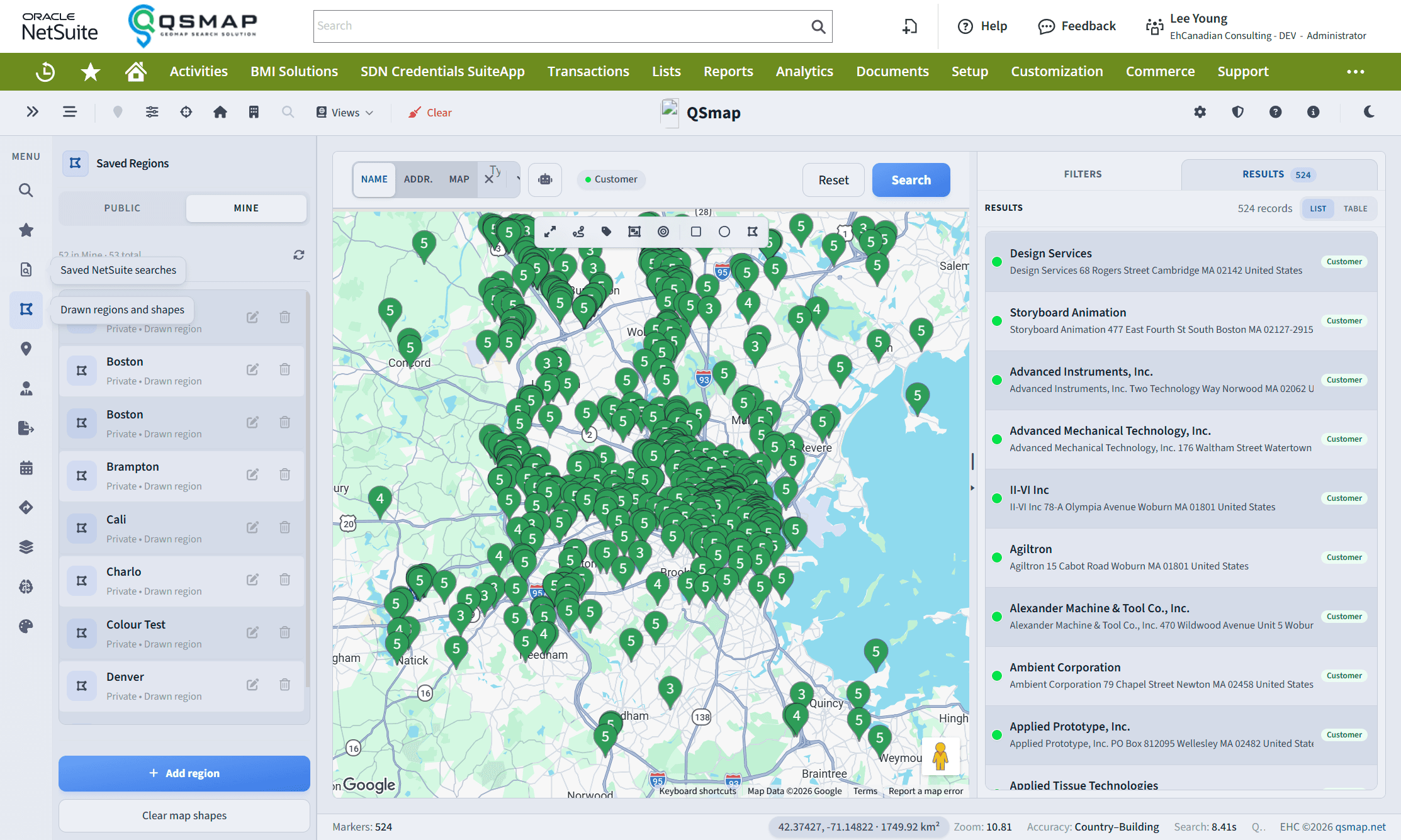
Saved Regions stores polygons and circles you draw on the map for territory work, filters, and reuse.
Create a region
- Use the map drawing tools to draw a polygon or circle.
- Open Saved Regions and save the shape with a clear region name.
- Optionally set description, visibility (for example public vs personal), and include/exclude behavior where available.
Rename and metadata
Open a region → edit Region name (not the shape label) → Save region. The list updates after a successful save.
Edit boundaries
- Open the region detail panel.
- Click Edit boundaries.
- Adjust the shape on the map.
- Save boundaries, or Cancel to discard map edits.
Region name vs shape label
| Field | Meaning |
|---|---|
| Region name | Name in your saved list |
| Shape label | Optional text shown on the map only |
Changing the shape label alone does not rename the saved region—use Save region for name/description.
Tips
- Edit one region or segment boundary at a time; starting another edit clears the previous edit session.
- Failed saves should show an error rather than a false success toast.